
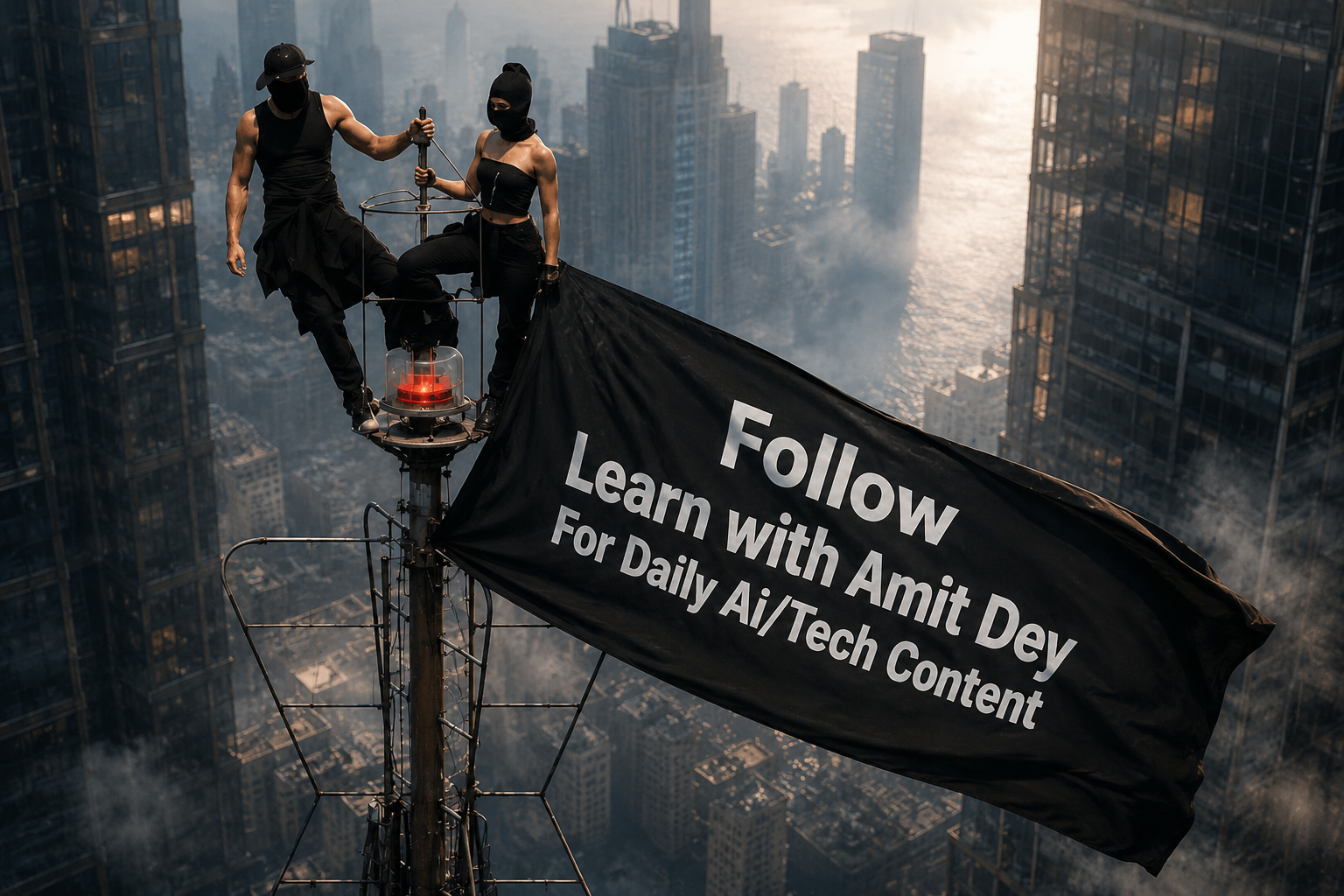
AI video generation is evolving faster than ever, and one of the latest trends taking over social media is the Tower Flag Text to Video AI effect. Using Google Flow, creators can transform a simple image into a cinematic video featuring a giant flag waving from a tower with custom text displayed naturally on the fabric.
If you’ve seen viral AI videos on Instagram Reels, TikTok, YouTube Shorts, or Facebook featuring dramatic tower scenes and personalized branding, this guide will show you exactly how to create them using Google Flow.
What Is the Tower Flag Text to Video AI Trend?
The Tower Flag Text to Video AI trend uses a reference image and a detailed prompt to generate a cinematic scene where:
- A massive flag waves from a tall tower.
- Custom text appears naturally on the flag.
- Realistic wind physics animate the fabric.
- The camera slowly zooms out for a dramatic movie-like effect.
- The entire scene looks like a professional film shot.
This effect has become popular because it combines branding, cinematic visuals, and AI-powered animation into a short, highly shareable video.
Why Google Flow Is Perfect for This Effect
Google Flow offers advanced AI video generation capabilities that help creators produce realistic videos without traditional editing software.
Benefits include:
- Realistic camera movement
- Cinematic depth of field
- High-quality AI rendering
- Smooth image-to-video conversion
- Natural environmental motion
- Professional visual storytelling
Even beginners can create impressive videos in just a few minutes.
Step-by-Step: Generate a Viral Tower Flag Video in Google Flow
Step 1: Open Google Flow
Sign in to Google Flow and access the video generation dashboard.
Step 2: Upload Your Reference Image
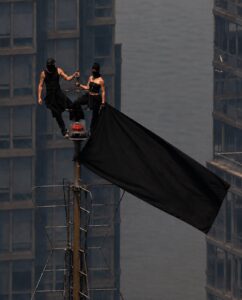
Choose the image you want to animate. The image should clearly show the tower, cityscape, or environment you want the AI to use as a reference.
Step 3: Select Image-to-Video Mode
Choose the Image-to-Video generation option.
Step 4: Paste the Prompt
Copy the prompt below and paste it into the prompt field.
Step 5: Replace the Text
Change:
[USER_TEXT]
to your desired text, such as:
- Brand Name
- YouTube Channel Name
- Instagram Username
- Website Name
- Business Name
- Marketing Slogan
Step 6: Generate the Video
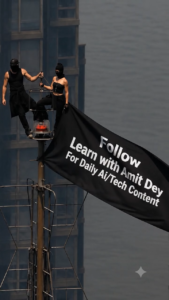
Click the Generate button and allow Google Flow to process the animation.
Step 7: Download and Share
Once completed, download the video and upload it to:
- YouTube Shorts
- Instagram Reels
- Facebook Reels
- WhatsApp Status
Tower Flag Text to Video AI Prompt for Google Flow
Tips for Making Your Video Go Viral
To maximize engagement, follow these tips:
Keep the Text Short
Use 1–3 words whenever possible. Short text remains more visible during flag movement.
Use High-Resolution Images
Better source images typically produce better AI video results.
Choose Strong Branding
Add:
- Website names
- Brand names
- Creator names
- Catchy slogans
Optimize for Mobile Viewing
Most viewers will watch your content on smartphones, so keep text large and readable.
Add Trending Music
Pair the generated video with trending audio on Instagram Reels or TikTok to improve reach.
Best Uses for Tower Flag AI Videos
These videos work exceptionally well for:
- Personal branding
- Business promotions
- Website marketing
- YouTube intros
- Social media advertisements
- AI content showcases
- Portfolio presentations
- Event announcements
Frequently Asked Questions
Is Google Flow free to use?
Google Flow availability and pricing may vary depending on your region and access level.
Can I customize the flag text?
Yes. Simply replace the [USER_TEXT] placeholder with any desired text.
What is the ideal video length?
The prompt is optimized for 5–8 second videos, which perform well on short-form content platforms.
Can beginners use this prompt?
Absolutely. The process requires only an image, a prompt, and a few clicks inside Google Flow.
Final Thoughts
The Tower Flag Text to Video AI trend is one of the most eye-catching AI video styles currently gaining attention across social media. By combining cinematic camera movement, realistic cloth simulation, and custom branding text, creators can generate professional-looking videos without advanced editing skills.